

Download Vysor – Free Remote Mobile Control, Mirroring & Screen‑Sharing Tool
Overview
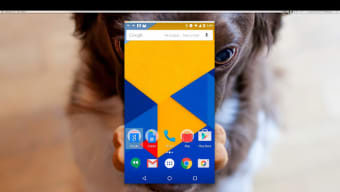
Vysor is a free remote‑control software that lets you view and operate your Android or iOS device directly from a Windows, macOS, Linux or Chrome‑based desktop. Developed by Vysor, Inc., the app works like an emulator but leverages the actual hardware of your smartphone, giving you a smoother, more responsive experience. By connecting your mobile device through a USB cable (or wirelessly with the Pro plan), Vysor mirrors the device screen, forwards touch input, and maps keyboard shortcuts to common gestures.
This makes it an ideal tool for developers testing apps, gamers who want a larger display, or anyone who simply prefers typing on a full‑size keyboard rather than on‑screen keyboards. The solution is available as a lightweight desktop client, a Chrome extension, and a web‑based version, so you can choose the interface that best fits your workflow. While the free tier offers essential mirroring and control, the paid Pro version adds fullscreen mode, drag‑and‑drop file transfer, wireless connectivity, Vysor Share for instant remote sessions, and priority updates.
Overall, Vysor bridges the gap between mobile and desktop environments, delivering a secure, fast, and user‑friendly way to extend your mobile productivity to the comfort of your PC.
Key Features of Vysor
- Real‑time screen mirroring with low latency for Android and iOS devices.
- Full keyboard and mouse support – type, click, scroll, and drag directly from your desktop.
- USB connection for reliable, high‑speed data transfer; optional wireless mode in Pro.
- Drag‑and‑drop file sharing between PC and mobile (Pro only).
- Fullscreen and resizable window options for immersive presentations.
- Vysor Share – generate a shareable link to grant remote access to collaborators.
- Integration with streaming tools like OBS and video‑conference platforms via camera plugins.
- Cross‑platform desktop client for Windows, macOS, Linux, and Chrome OS.
- Secure ADB authentication and optional two‑factor verification.
- Automatic updates and a simple UI that separates Android and iOS devices into distinct panels.
Installation, Usage & Compatibility
Step‑by‑Step Installation
- Visit the official Vysor website or Chrome Web Store and download the installer for your operating system.
- Run the
.exe(Windows) or.dmg(macOS) file; the app will prompt you to grant necessary permissions. - Enable Developer Options on your Android device and turn on USB debugging (or install the iOS driver for macOS).
- Connect your phone to the computer via a USB data cable. Vysor will automatically detect the device and display it in the “Android Devices” panel.
- If you prefer a wireless connection, upgrade to Vysor Pro, enable “Wireless ADB,” and follow the on‑screen QR‑code pairing process.
How to Use Vysor Effectively
Once your device appears, click the View button to launch the mirrored screen in a separate window. From there, you can control the phone using your keyboard and mouse. Keyboard shortcuts such as Ctrl+C for copy, Ctrl+V for paste, and Esc to simulate the back button make navigation seamless.
For developers, the drag‑and‑drop feature (Pro) allows you to move APK files directly onto the device for instant installation. The Settings menu lets you toggle fullscreen mode, adjust image quality, and enable camera plugins for streaming. If you encounter connection hiccups, the built‑in troubleshooting guide provides quick links to download the required ADB drivers or reset the USB debugging state.
Supported Operating Systems: Windows 10/11, macOS 10.15 and newer, Linux distributions with X11/Wayland, and Chrome OS. The web version runs on any modern browser that supports WebUSB (Chrome, Edge).
Pros, Cons & Frequently Asked Questions
Pros
- Free tier provides essential mirroring and remote control without hidden fees.
- Low‑latency USB connection delivers a smooth experience comparable to native device performance.
- Cross‑platform support makes it usable on Windows, macOS, Linux, and Chrome OS.
- Keyboard and mouse integration dramatically speeds up typing and navigation.
- Pro features such as wireless ADB and Vysor Share add flexibility for remote collaboration.
Cons
- Wireless mode and advanced features are locked behind a subscription.
- Initial setup can be confusing for non‑technical users, especially on iOS.
- Occasional connection drops may require re‑plugging the USB cable.
- Free version limits screen resolution and does not support fullscreen mode.
- Linux users may need to manually install ADB and set proper udev rules.
FAQ – Your Vysor Questions Answered
Is Vysor safe to use with my personal data?
Yes. Vysor uses ADB’s built‑in authentication, and all data stays on your local network or USB connection. The Pro version adds optional two‑factor verification for extra security.
Can I mirror my iPhone with Vysor?
Vysor supports iOS devices on macOS via Apple’s native screen‑sharing APIs. Windows users need a macOS bridge or can use the web version with limited functionality.
Do I need a Google account to use Vysor?
No. Vysor can be used anonymously, but signing in with a Google account enables cloud‑based device sync and easier access to Vysor Share links.
How does the free version differ from Pro?
The free tier offers basic mirroring, USB control, and limited resolution. Pro adds wireless connectivity, fullscreen mode, drag‑and‑drop file transfer, higher quality streaming, and priority updates.
Can I use Vysor for gaming on my PC?
Yes. Because Vysor mirrors the device in real time, you can play mobile games with a keyboard and mouse, though performance depends on your USB connection speed and device hardware.
Overall Rating: 4.5/5 – Vysor delivers a reliable, cross‑platform remote‑control experience that’s especially valuable for developers and power users. The free version is generous, and the Pro upgrade is reasonably priced for the added convenience.
Conclusion & Call to Action
Vysor stands out as a versatile, secure, and easy‑to‑use solution for anyone who wants to bring the convenience of a keyboard and mouse to their mobile device. Whether you’re testing an Android app, presenting a mobile demo, or simply typing long messages without squinting at a tiny screen, Vysor bridges the gap without the overhead of a full emulator. The free tier is more than sufficient for casual users, while the Pro subscription unlocks advanced features that power users will appreciate. If you’ve been looking for a seamless way to control your phone from your desktop, give Vysor a try today.
Download Vysor now and start mirroring your mobile device instantly. Upgrade to Pro for wireless access, fullscreen mode, and the ability to share sessions with teammates in just a click.







